![OA_Logo-600x600-1.png]](https://www.omnially.com/hs-fs/hubfs/OA_Logo-600x600-1.png?height=40&name=OA_Logo-600x600-1.png)
Where to find it: Projects → select a project → Contact Book
The Contact Book lists the people connected to a Project, giving your team one up-to-date record of everyone involved in the installation, support, and ongoing management of a site. Instead of digging through emails or personal contact lists, the right person is easy to find.
Typical contacts include customer representatives, project managers, facility contacts, installers, service providers, vendors, and consultants.
Note Contacts aren’t created from scratch here. The Contact Book links people from your company-wide pool of contacts to this Project. If someone isn’t in the pool yet, you can create them and link them in one step (see below).
Before You Begin
Before adding or updating project contacts:
• Make sure you have permission to manage project contacts.
• Verify you’re working within the correct Project.
• Gather any relevant contact information.
Accessing the Contact Book
To Open the Contact Book
1. Navigate to Projects.
2. Open the Project you want.
3. Select Contact Book.
4. The Contact Book displays all contacts currently linked to the Project.
Viewing a Contact
Click a contact’s last name to open a read-only panel with their full details, including name, title, email, phone, and a LinkedIn link where one is on file. This gives you everything you need to get in touch without leaving the Project.
Adding Contacts
Adding a contact links an existing person from your contact pool to the Project.
To Add a Contact
1. Open the Contact Book.
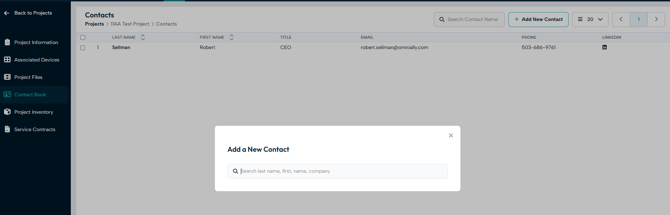
2. Click Add New Contact.
3. Search by name, email, or company.
4. Select a result to preview, then confirm to link them to the Project.
Anyone already linked to the Project won’t appear in the search results.
If the Contact Doesn’t Exist Yet
If the person isn’t in your pool, use Create new contact. This adds them to your company-wide contacts and links them to the Project in a single step, so you don’t have to set them up separately first.
Lead PM and Install Team
The Project’s lead project manager and install team appear in the Contact Book automatically. They’re set on the Project Information page, not here.
Important Because they come from Project Information, the lead PM and install team can’t be removed from the Contact Book. To change them, edit the Project Information page instead.
Removing Contacts
When a contact is no longer involved, you can unlink them from the Project.
To Remove a Contact
1. Open the Contact Book.
2. Use the row menu to unlink the contact, or select several and unlink them together.
3. Confirm the action.
Note Unlinking removes the contact from this Project only. Their contact record stays in your company-wide pool and can be linked to other Projects.
Searching for Contacts
Projects with many stakeholders can hold a long list of contacts. To find someone quickly, use the search field and enter part of their name, email, or company, then select the contact you want.
Keeping Contacts Useful
A little organisation goes a long way. Most Projects benefit from covering a few categories of people:
• Customer contacts : executive sponsors, project owners, marketing managers.
• Operational contacts : site managers, facility coordinators, department representatives.
• Technical contacts : IT administrators, service technicians, technical consultants.
• Vendor contacts : manufacturers, installers, contractors.
Best Practices
• Keep contact information current. Update the underlying contact records whenever details change.
• Include multiple contacts. Avoid relying on a single point of contact wherever possible.
• Cover the key roles. Make sure customer, operational, technical, and vendor contacts are all represented.
• Review contacts periodically. Regular reviews keep the list accurate.
• Add key stakeholders early. Link people to the Project as soon as they become involved.