![OA_Logo-600x600-1.png]](https://www.omnially.com/hs-fs/hubfs/OA_Logo-600x600-1.png?height=40&name=OA_Logo-600x600-1.png)
Where to find it: Content → Content Approval
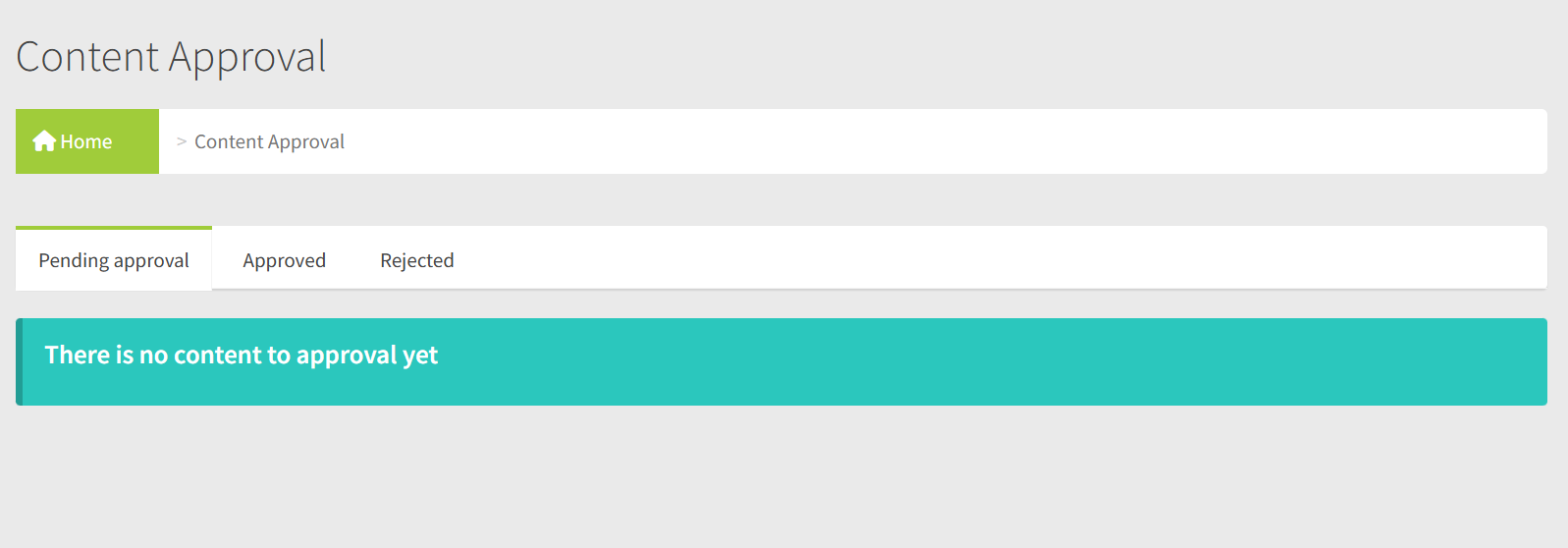
Content Approval is a review queue for advertising content that comes from connected ad networks. When an ad partner sends new creative to one of your devices, it waits here for an administrator to review it before it’s allowed to play, giving you control over what appears on your screens.
It’s available to administrators, and is found under Content in the sidebar.
Note Content Approval works with the same ad networks you connect at the company level: AdOmni, AdStash, Vengo, and Vistar. See the Companies article for how those connections are set up.
When Content Needs Approval
Each ad-network connection can be set to require manual approval or not. When manual approval is switched on, new content waits in this queue for review. When it’s switched off, new content is approved automatically and never appears here.
When new content is waiting for review, an email is sent to your company’s configured report addresses, so the queue doesn’t go unnoticed.
The Three States
Every item in Content Approval is in one of three states, and the page has a tab for each:
|
State |
Meaning |
|
Pending Approval |
Waiting for an administrator to review it. |
|
Approved |
Cleared to play on the device. |
|
Rejected |
Blocked from playing. |
The page opens on the Pending Approval tab. Pending items are listed with the most recently received first; approved and rejected items are listed by when the decision was made.
Reading the Queue
Each item in the list shows the key details you need to make a decision:
|
Column |
Description |
|
Device |
The device the content was sent to (links to the device’s page). |
|
Playlist |
The device’s ad playlist (links to it). |
|
Preview |
A thumbnail — click it for a full preview. |
|
Type |
Whether it’s an image or a video. |
|
Filename |
The content’s file name. |
|
Ad partner |
Which ad network served the content. |
|
First / last requested |
When the content was first and most recently seen on the device. |
|
Actions |
Buttons to view the content in your browser or download it. |
On the Approved and Rejected tabs, each item also shows when the decision was made and who made it.
The Size Check
On the Pending Approval tab, each item shows whether the content’s dimensions fit the playlist’s size, with a simple icon:
|
Icon |
Meaning |
|
Green check |
The dimensions match. |
|
Warning triangle |
A slight mismatch — worth a look. |
|
Red cross |
The dimensions don’t fit and won’t display correctly. |
Hovering over the icon shows the specific detail, so you can see exactly what the issue is before deciding.
Reviewing Content
From the Pending Approval tab, select one or more items using the checkboxes (or Select All), then choose what to do with them.
Approving
Approve clears the selected content to play. It’s added to the device’s ad playlist on the next sync, and the ad network is automatically told its content ran.
Rejecting
Reject blocks the selected content and offers two choices:
|
Option |
What it does |
|
Reject permanently |
Blocks the content for good. It won’t return to the queue. |
|
Reject for 90 days |
Blocks the content for 90 days. After that, it can re-enter the queue if the ad partner serves it again. |
Either way, the ad network is automatically told its content was blocked.
Tip Use Reject for 90 days for content that’s simply not right for now, and Reject permanently for anything you never want to see again.
Changing a Decision
If you need to revisit a decision, the Approved and Rejected tabs have a Back to queue option. Select the items and send them back to Pending Approval to review again. If an approved item had already been added to a playlist, it’s removed from there when it returns to the queue.
Exporting a Log
Every tab has an Export Log button. Enter a number of days, and you’ll get a spreadsheet of the items in that tab’s state from within that time window — useful for record-keeping or reviewing decisions. The approved and rejected exports also include when each decision was made and who made it.
What You Can See
The queue only shows content for the devices you have access to. If your access is limited to certain companies, you’ll see content only from those companies’ devices.
Best Practices
• Check the queue when notified. The email alert means content is waiting — reviewing promptly keeps approved ads flowing.
• Use the size check. The icon flags content that won’t display correctly before you approve it.
• Choose the right rejection. A 90-day rejection is reversible in effect; a permanent one isn’t — pick to match how you feel about the content.
• Preview before deciding. Open the full preview to see exactly what would play on your screens.