![OA_Logo-600x600-1.png]](https://www.omnially.com/hs-fs/hubfs/OA_Logo-600x600-1.png?height=40&name=OA_Logo-600x600-1.png)
Where to find it: Manage → Users → New User, or click a user to edit
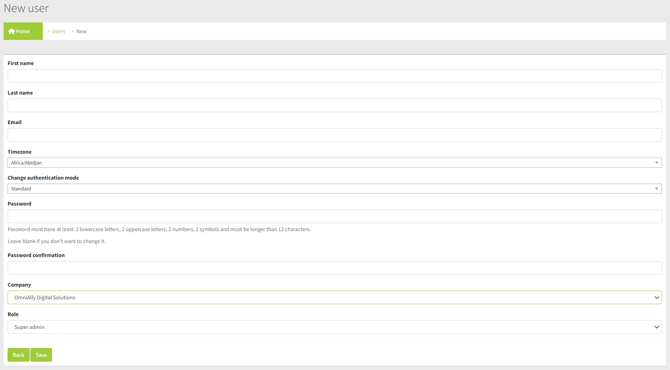
Creating and editing users use the same set of details. This article covers those details, the ways a user can sign in, their profile picture, and their personal access key.
Creating a User
To Create a User
1. On the Users page, choose to create a new user.
2. Enter their first name, last name, email, and timezone.
3. Choose their role, and the company they belong to.
4. Set how they’ll sign in (see Sign-In Methods below). For a standard password login, set a password.
5. Save to create the user.
Note: If the user signs in with Google or Microsoft, they’ll receive an invitation email with instructions to set up their sign-on.
Editing a User
Editing offers the same details as creating. A couple of points to note:
• Leaving the password blank keeps the user’s current password unchanged.
• The company can be changed by administrators.
Sign-In Methods
Each user signs in using one of these methods:
|
Method |
How they sign in |
|
Standard |
With a username and password. A password field is shown. |
|
|
Through their Google account. No password is needed. |
|
Microsoft |
Through their Microsoft account. No password is needed. |
If you switch a user from a standard password to Google or Microsoft, the form asks you to confirm, then sends them an invitation email with a one-time link to activate the new sign-on. The user has to click that link before the new method works.
Note: When switching a user to Microsoft, you’ll see a reminder to ask them to check their spam folder for the invitation email — these can sometimes be filtered.
Profile Picture
A user’s profile picture is drawn automatically from Gravatar, based on their email address. If they have a Gravatar set up for that address, it appears in the dashboard.
Personal Access Key
Each user has a personal access key, shown as read-only on their edit page. It’s used when connecting to the dashboard through its external connection rather than for normal sign-in.
Note: Senior administrators have an option to regenerate a user’s access key. Doing so replaces the old key immediately, so any connection relying on the previous key will need updating.
Best Practices
• Assign the lowest role that fits. Give people the access they need and no more, Viewer for read-only, Regular user for content work, Administrator for management.
• Use the right sign-in method. Google or Microsoft sign-on is convenient where your organisation already uses those accounts.
• Tell users to expect the invitation. When setting up Google or Microsoft sign-on, let the person know an email is coming, and to check spam.