![OA_Logo-600x600-1.png]](https://www.omnially.com/hs-fs/hubfs/OA_Logo-600x600-1.png?height=40&name=OA_Logo-600x600-1.png)
Where to find it: Manage → Custom modules
Custom modules are add-on files you can install on your devices to extend what they do. Each module is a packaged file that belongs to your company and can be assigned to one or more devices.
Modules belong to a company, so administrators see the modules for their own company and any companies beneath it. Regular users and viewers don’t have access to this section.
Note Modules also appear in a device’s own settings (see the Device Settings & Permissions article). This page is the central place to manage your modules across devices.
Before You Begin
Before working with custom modules:
• Make sure you have administrator access: modules are managed by administrators.
• Have the module file ready (a packaged file provided for the purpose).
• Know which devices the module is for.
The Modules List
The Custom modules page lists your modules, with the following on each:
|
Column |
Description |
|
Name |
The module’s name. You can sort and search by it. |
|
Company |
The company that owns the module. |
|
File |
A link to download the module file. |
|
Associated devices |
The devices the module is currently assigned to, each shown with its location, model, serial number, and status. |
|
Last updated |
When the module was last changed. |
Removed modules remain in the list with a struck-out style until they’re permanently deleted.
Creating a Module
To Create a Module
1. On the Custom modules page, choose to add a new module.
2. Enter a name.
3. Upload the module file.
4. Save.
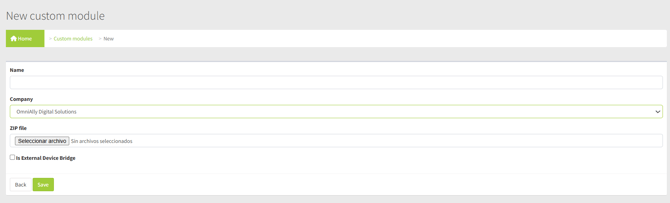
The module is added to your company and is then ready to assign to devices.
Note If you create a module from a device’s own page, it’s assigned to that device automatically. Choosing Save and Update at that point sends the module to the device straight away.
Editing a Module
To update a module, open it from the list, change its name or upload a new version of the file, and save.
Important If you upload a new version and choose Save and Update, the update is sent to every device that has this module, so a single edit can change all of them at once. Use it when you’re ready for the new version to go live everywhere.
Assigning Modules to Devices
A module only takes effect once it’s assigned to a device. You can assign modules from a device, choosing from the modules available to you that aren’t already on it, and you can assign several at once.
To Assign Modules to a Device
1. Open the device and go to its modules.
2. Choose to add modules.
3. Select one or more modules from the list.
4. Save. Choosing Save and Update sends the modules to the device immediately.
Tip A module is only active on a device once the device has installed it. After assigning, use Save and Update, or run an Update Device action, so the device picks it up.
Removing a Module from a Device
To take a module off a single device, remove it from that device’s modules. This unassigns the module from that device only. The module itself stays in your library and remains assigned to any other devices that use it.
Deleting and Recovering Modules
Deleting a module removes it from your library and unassigns it from every device that had it. Because a deleted module is set aside rather than destroyed immediately, it stays in the list with a struck-out style and can be brought back with Recover. Deleting an already-removed module a second time destroys it permanently, along with its file.
Important Deleting a module removes it from all the devices using it. Check what depends on a module before deleting, and recover rather than re-delete unless you’re certain: the second deletion can’t be undone.
Best Practices
• Name modules clearly. A descriptive name makes the right module easy to find and assign.
• Update deliberately. Uploading a new version with Save and Update changes every device at once, so do it when you’re ready to roll the change out.
• Check assignments before deleting. The Associated devices column shows what a module is on; review it before removing the module.
• Recover rather than re-delete. A removed module can be restored; deleting it again is permanent.