![OA_Logo-600x600-1.png]](https://www.omnially.com/hs-fs/hubfs/OA_Logo-600x600-1.png?height=40&name=OA_Logo-600x600-1.png)
Where to find it: Select a widget → right sidebar Settings tab → Data Flow Interaction
Dataflow and Transitions bring a Canvas to life. Dataflow lets widgets and pages respond to actions and automated events, while Transitions are the animations that play as content appears and disappears.
A Canvas works perfectly well without either. These features simply add interactivity and polish. Come back to them when you’re ready to take a design further.
Common uses include:
• Opening popups
• Changing pages automatically
• Displaying additional donor information
• Triggering actions when content finishes playing
• Creating smooth animations between screens
Understanding Dataflow
Dataflow connects two widgets so that something happening on one triggers an action on the other. Think of it as a link: when an event occurs on one widget, another widget responds automatically, for example, showing a popup when a playlist is tapped, or changing the page when a donor list reaches its end.
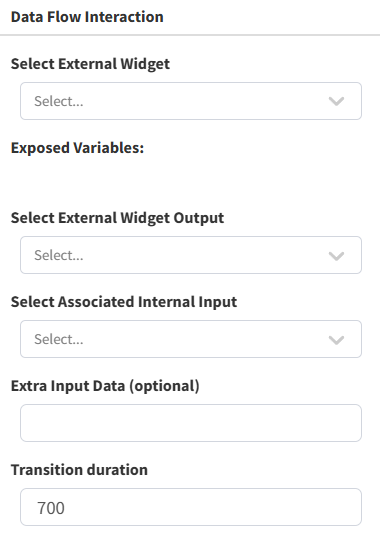
Creating a Dataflow Interaction
You start from the widget that should respond, then point it at the widget that triggers it.
1. Select the widget that should respond to an event.
2. Open the Settings panel and locate the Data Flow Interaction section.
3. Choose the external widget: the one whose event will trigger the action.
4. Select the event from that widget (for example, a click, or a list reaching its end).
5. Select the action to perform on the responding widget (for example, show, hide, or change page).
6. If needed, add extra input data — such as a value passed from the triggering widget (see below).
7. Set the transition duration if the action is animated (minimum 500 milliseconds).
8. Click Add to save the interaction.
Note Some widgets expose data, such as a selected donor’s name, listed as exposed variables. You can reference these in the extra input data field, which is how you display the name of a donor a visitor just tapped.
Understanding Events
An event is the thing that happens on the triggering widget. Examples include:
|
Event |
Happens when… |
|
Click |
A viewer selects an item. |
|
Playlist Complete |
A playlist reaches the end. |
|
Donor Selected |
A visitor selects a donor. |
|
Source Shift |
A donor list moves to its next source. |
|
List Complete |
A donor list reaches the end. |
Understanding Actions
An action is what happens on the responding widget when the event occurs. Common actions include:
|
Action |
Result |
|
Show |
Displays a widget. |
|
Hide |
Hides a widget. |
|
Toggle |
Alternates between visible and hidden. |
|
Change Page |
Navigates to another page. |
|
Update Content |
Displays new information (such as a selected donor’s name). |
Putting It Together: Common Patterns
|
When this happens… |
…do this |
Used for |
|
A donor list reaches its end |
Change to the next page |
Cycling through screens automatically |
|
A playlist is tapped |
Show a popup |
Revealing more information on touch |
|
A donor’s name is tapped |
Show that name in a text box |
Highlighting an individual donor |
|
A donor list moves to its next source |
Show or toggle a popup |
Introducing a new giving group |
Managing Existing Interactions
All configured interactions are listed within the Data Flow Interaction section, showing the triggering widget, the event, the action, and any extra data. From here you can review, modify, or delete them.
Note If a widget used in an interaction is later deleted, that interaction is removed automatically; so you won’t be left with links pointing to widgets that no longer exist.
Understanding Transitions
Transitions are the animations that play when content appears or disappears, helping create a smoother, more polished experience. They’re available in several places, and all draw from the same set of animations defined for your design. Choosing None means no animation.
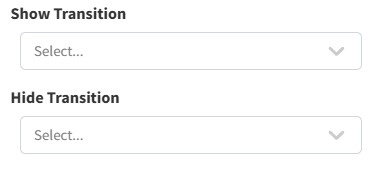
Page Transitions
Page transitions play when moving from one page to another.
1. Select a page.
2. Open Page Settings.
3. Choose the show (entering) and hide (leaving) transitions.
4. Save your changes.
Popup Transitions
Popup transitions control how a popup appears and disappears.
1. Select the Popup widget.
2. Open Popup Settings.
3. Choose the show and hide transitions.
4. Save your changes.
Donor List Transitions
Donor List transitions control how names move between shifts when Multi-Page Shifting is enabled, giving smoother rotation, better readability, and a more professional presentation.
1. Select the Donor List widget.
2. Enable Multi-Page Shifting.
3. Choose a transition preset — or enable separate in/out transitions to control each direction independently.
4. Save your changes.
Tip A preset applies a matched in-and-out pair in one selection. Turn on separate in/out transitions when you want names to enter and leave with different animations.
Best Practices
• Keep interactions simple. Too many interactions become difficult to manage and troubleshoot.
• Test user workflows. Always test interactions on a real screen before publishing.
• Use transitions consistently. Consistent animations create a more professional experience.
• Avoid excessive animation. Animations should support the content, not distract from it.