![OA_Logo-600x600-1.png]](https://www.omnially.com/hs-fs/hubfs/OA_Logo-600x600-1.png?height=40&name=OA_Logo-600x600-1.png)
Where to find it: Reports
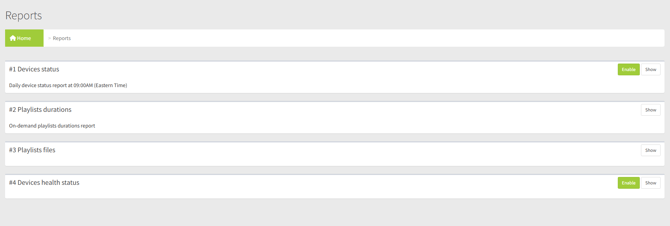
Two reports help you monitor the health of your screens: Devices Status, a daily summary of what’s offline or in error, and Devices Health Status, an interactive view for tracking and working through device issues. Both can be turned on or off from the Reports page.
Devices Status
Devices Status is a daily summary of screens that need attention. When enabled, it’s emailed to you each morning at 9:00 AM Eastern Time, and you can also view it on screen at any time. It has two parts:
• Error: devices currently reporting an error.
• Offline: devices that have gone quiet, grouped by how long they’ve been offline.
The offline devices are sorted into time bands so you can tell at a glance what’s recently dropped off versus what’s been down for longer:
|
Band |
How long offline |
|
5 to 20 minutes |
Recently dropped off. |
|
21 minutes to 1 hour |
|
|
1 to 4 hours |
|
|
4 to 12 hours |
|
|
12 to 24 hours |
|
|
24 to 72 hours |
|
|
72 hours or more |
Offline for some time. |
Each device shows its location name, serial number, and how long it’s been offline, and links straight to that device’s page. Screens that are permanently offline aren’t included.
Note The daily email is sent only when the report is enabled, so turn it on if you’d like the morning summary in your inbox.
Devices Health Status
Devices Health Status is an interactive view for tracking the condition of your screens and working through any issues. It combines an at-a-glance chart with detailed, actionable tables.
The Chart
A bar chart shows how many devices fall under each health label, so you can quickly see where attention is needed. Only labels that currently apply to at least one device appear.
The Device Tables
Below the chart, devices are grouped by health label, each group in its own collapsible section. For each device you’ll see:
|
Column |
Description |
|
Serial number |
With a colour dot: green for online, red for error, yellow for anything else. |
|
Location name |
Where the device is installed. |
|
Troubleshooting status |
The health label, which you can change right here from a dropdown. |
|
Last seen |
When the device last checked in. |
|
Actions |
A link to the device’s page, and a Chat button (see below). |
Changing a device’s troubleshooting status from the dropdown updates it immediately and refreshes the grouped view. Permanently offline devices aren’t shown.
Troubleshooting Statuses
These are the health labels you can assign, to keep track of why a device needs attention and where it is in being resolved:
|
Label |
Meaning |
|
No Issues |
Working normally. |
|
No Issues – Offline >72hrs |
Offline a long time, but not a concern. |
|
Offline – Installed, Awaiting Internet |
Installed and waiting for a connection. |
|
Offline – Investigate |
Being looked into. |
|
Offline – General |
Offline, reason not yet categorised. |
|
Offline – Location Change |
Offline because it’s being moved. |
|
Offline – No Data |
Offline with no recent information. |
|
Offline – Replacement En Route |
A replacement is on its way. |
|
Offline – Unreliable WiFi |
Offline due to an unstable connection. |
|
Offline – Blocked |
Offline and blocked. |
|
Offline – Not Installed |
Not yet installed. |
|
Error – Hardware Issue |
An error caused by hardware. |
|
Error – Software Issue |
An error caused by software. |
Note These labels are for your team’s own tracking and don’t change anything on the device itself; they simply record what’s going on and who’s on it. This is the same idea as the health label described in the Managing a Device article.
The Chat Panel
Each device has a Chat button that opens a side panel showing that device’s public notes. You can add a message, tag a colleague with an @mention to notify them, and the panel updates in real time, so it’s a handy way to coordinate on a device without leaving the report.
Best Practices
• Turn on the daily summary. Enabling Devices Status puts a morning overview of anything offline in your inbox.
• Keep troubleshooting statuses current. Updating a device’s label as you work helps your whole team see what’s in hand.
• Use the chat panel to coordinate. Notes and @mentions keep the conversation about a device in one place.