![OA_Logo-600x600-1.png]](https://www.omnially.com/hs-fs/hubfs/OA_Logo-600x600-1.png?height=40&name=OA_Logo-600x600-1.png)
Where to find it: Content → Media library → file menu → Edit
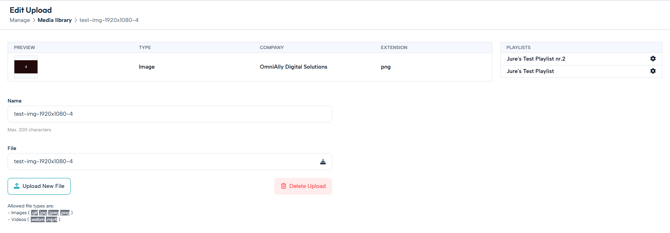
The Edit Upload page is where you rename a file, replace it with a new version, and see which playlists are using it. Any change you save here flows through to those playlists and the devices running them.
What the Page Shows
A panel at the top shows the file’s details: a preview (or a file icon for web content), its type, owning company, and extension. Alongside it is a list of every playlist that currently uses the file, with a shortcut from each to that playlist’s editor.
Tip The playlists panel is the quickest way to see what depends on a file before you change it (handy for checking the impact of a rename or replacement).
Renaming a File
The Name is the label shown for the file throughout the dashboard. Edit it (up to 200 characters) and save, and the file’s name updates everywhere it appears. Older copies are cleaned up automatically.
Replacing a File
You can swap in a new version of a file while keeping it in all the same playlists:
1. Click the trash icon next to the current filename to start a replacement.
2. Choose the new file from the picker.
3. Save your changes.
The new file takes the old one’s place, and every playlist that used it keeps the file in position — no need to re-add it.
Saving
Clicking Save Changes applies your edits and pushes the update to every playlist that uses the file, and from there to all connected devices.