![OA_Logo-600x600-1.png]](https://www.omnially.com/hs-fs/hubfs/OA_Logo-600x600-1.png?height=40&name=OA_Logo-600x600-1.png)
Where to find it: Content → Playlists → click a playlist (or Manage)
The Manage editor is where you build a playlist: adding content, arranging its order, scheduling items, and saving. Opening a playlist takes you straight here.
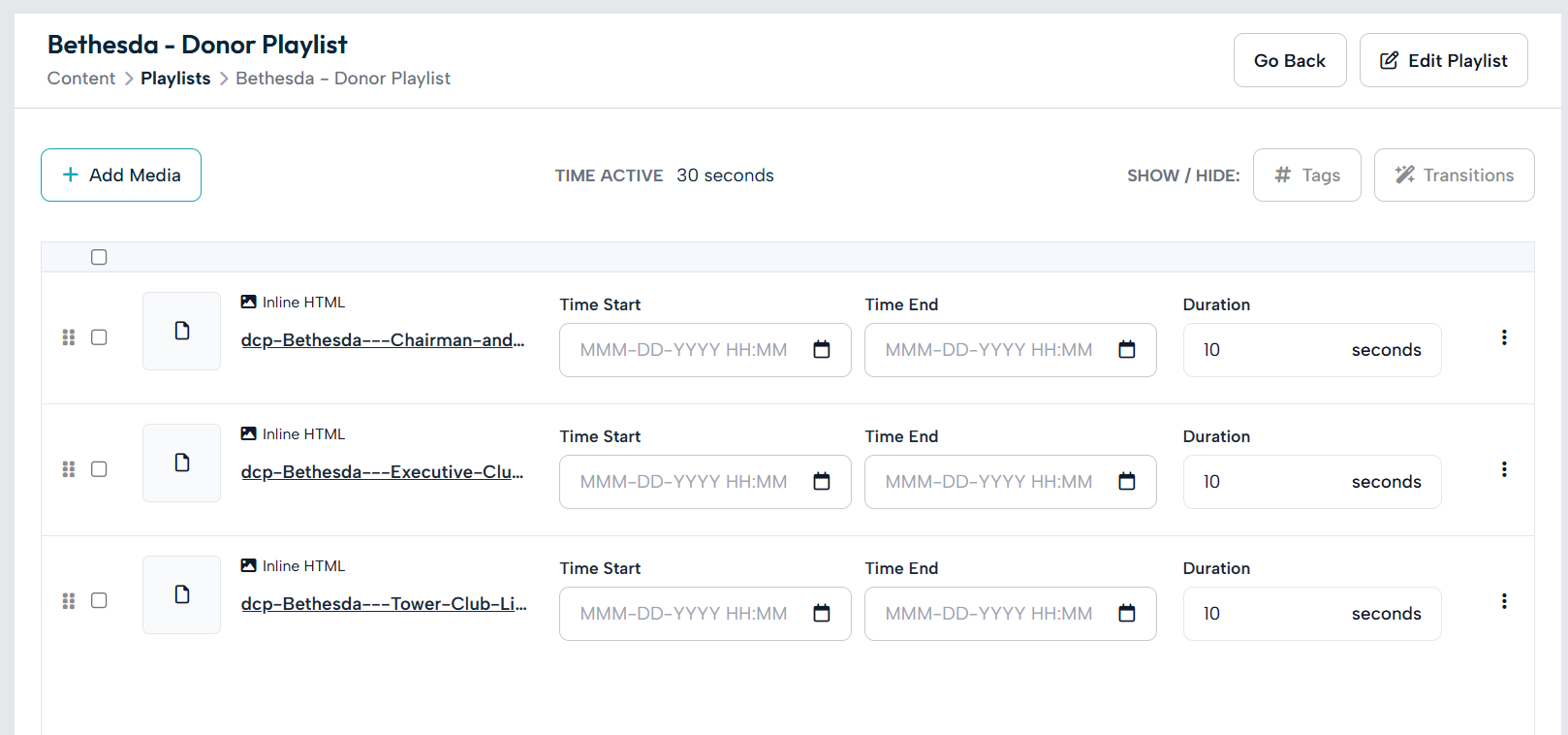
Finding Your Way Around
The header holds the main controls:
• Go Back : returns to the playlists list (or to the device page, if you opened the playlist from a device).
• Edit Playlist : opens the playlist’s settings form.
Two counters show the playlist’s length as you work:
• Time Active : the combined length of all items currently visible (items scheduled to start in the future aren’t counted).
• Remaining : shown when a Max Time is set; it counts down from that limit and turns red if the playlist runs over.
Showing Extra Controls
Two toggles in the header reveal optional panels on every item, so you can keep the view simple until you need them:
• Tags : shows or hides each item’s tags.
• Transitions : shows or hides each item’s transition controls.
Adding Media
The Add Media button opens a window with two ways to add content:
|
Tab |
What it does |
|
Upload New File |
Drag and drop files to upload them. They’re added to the company’s media library and to the playlist at the same time. You can upload several at once. |
|
Select from Media Library |
Browse files already in the media library, preview them, and select one or more to add. |
Newly added items appear at the bottom of the list with a default display time: 10 seconds for images and web content, and the clip’s own length for videos.
Saving Your Work
Two save options control how far your changes go. Both appear only when you have unsaved changes.
|
Option |
What it does |
|
Save as Draft |
Saves your changes and refreshes the playlist file on devices, but doesn’t switch the live content over yet. |
|
Save & Update |
Saves your changes and immediately updates every device running this playlist. |
Note After you use Save as Draft, only Save & Update is shown until you make another change: a simple way to publish the draft when you’re ready.
Best Practices
• Draft first, publish when ready. Use Save as Draft while you’re still arranging content, then Save & Update to go live.
• Keep an eye on the counters. Time Active and Remaining help you build a loop of the right length.