![OA_Logo-600x600-1.png]](https://www.omnially.com/hs-fs/hubfs/OA_Logo-600x600-1.png?height=40&name=OA_Logo-600x600-1.png)
Where to find it: Content → Media library
The media library is your company’s central file store. It holds every file you’ve uploaded: images, videos, and web-based content, ready to be used in playlists. It shows the files belonging to your company, and, for administrators, the files of any companies beneath it.
Files in the library are the content that playlists actually play. Because of that link, changing or removing a file ripples outward: every playlist that uses it, and every device running those playlists, is updated automatically.
Before You Begin
Before working with the media library:
• Make sure you have permission to manage content.
• Have your files ready, and check they’re in a supported format (see File Types).
• Keep in mind that changing or deleting a file affects every playlist and device that uses it.
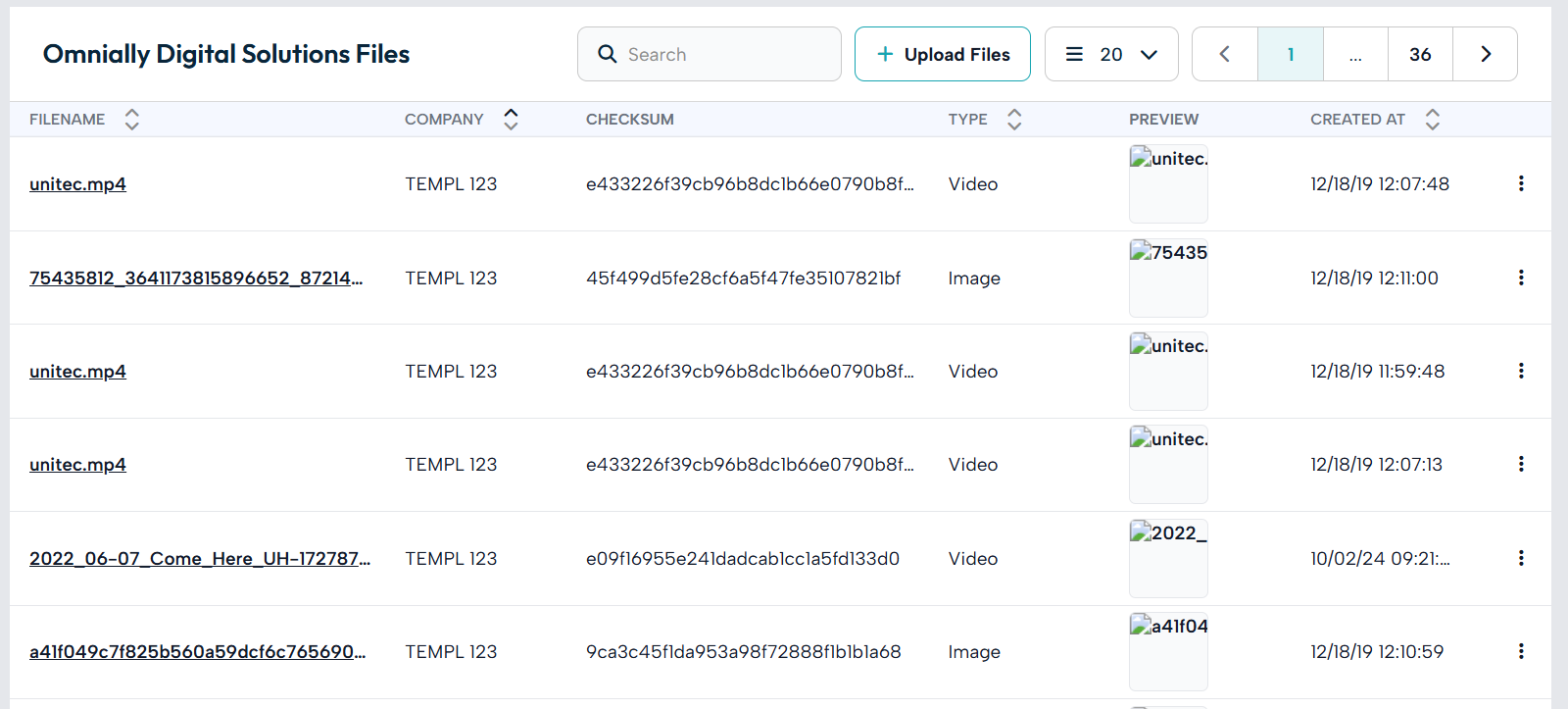
The Media Library List
The library lists your files, with these details on each:
|
Column |
Description |
|
Filename |
The file’s name: click it to open a preview. |
|
Company |
The company that owns the file. |
|
Type |
The kind of file: Image, Video, HTML, and so on. |
|
Preview |
A thumbnail for images and videos. |
|
Created at |
When the file was uploaded. |
Use the search box to find a file by its name or extension.
Note Some accounts also show a Checksum column : a technical fingerprint of the file used for integrity checks. It’s only visible to users with the relevant permission and isn’t needed for day-to-day work.
File Actions
Each file has a menu of actions:
|
Action |
What it does |
|
Preview |
Opens the file : images show inline, videos play, and web content loads in a frame. |
|
Edit |
Opens the file’s edit page (see Edit Upload Page). |
|
Download |
Downloads the file directly. |
|
Lock |
Opens the locking page to control who can change the file (see File Locking). |
|
Unlock |
Shown instead of Lock when a file is already locked; clears the lock. |
|
Audit |
Shows the file’s change history, where permitted. |
|
Delete |
Removes the file, after a confirmation that warns it will be taken off all devices. |
You can also select several files at once and delete them together.
Deleting and Recovering Files
Deleting a file removes it from the library and from every playlist and device that was using it; those playlists are tidied up automatically. Because a deleted file is set aside rather than destroyed immediately, it can be recovered from the list if you need it back.
Important Deleting a file affects every playlist and device that uses it. The confirmation message reminds you of this : check what depends on a file before removing it.
File History
Every change to a file is recorded. You can open that history from the Audit option in the file’s menu, where permitted — useful for seeing what changed and when.