![OA_Logo-600x600-1.png]](https://www.omnially.com/hs-fs/hubfs/OA_Logo-600x600-1.png?height=40&name=OA_Logo-600x600-1.png)
Where to find it: Content → Playlists → select a playlist → Edit
A playlist’s settings control how it’s identified, how it fits the screen, and who can see it. You set these when creating a playlist and can change most of them later from its settings form.
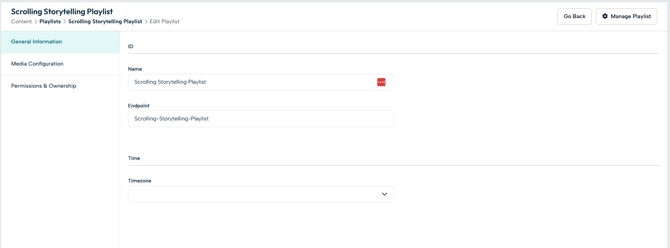
Settings
|
Setting |
Description |
|
Name |
Required, and unique within the company. Used to identify the playlist throughout the dashboard. |
|
Company |
The company that owns the playlist. |
|
Max Time |
An optional time limit, in seconds. When set, the editor shows a Remaining counter that turns red if the playlist runs over. |
|
Orientation |
How the playlist is shown relative to the screen: Default, Portrait, Landscape, or Portrait in Landscape. |
|
Restrict size |
Optionally require items to match a set aspect ratio or exact pixel size. Items that don’t match are flagged (see Size Restrictions and Export). |
|
Endpoint |
A short, web-safe identifier devices use to fetch the playlist. Filled in automatically from the name, editable, and unique within the company. |
|
Users |
Who can see the playlist. It can be hidden from regular users, though administrators always see every playlist. |
|
Timezone |
The timezone used to interpret each item’s schedule (its visible-from and visible-until times). |
|
Default transition |
The animation applied to items that are set to inherit the playlist’s default. |
Note: The timezone and default transition are set within the editor; the rest are set on the playlist’s settings form.
Best Practices
• Name playlists clearly. A unique, descriptive name makes playlists easy to find and assign.
• Match orientation and size to the screen. Set these to suit the devices the playlist will run on, so content displays correctly.
• Use Max Time when you need a fixed loop. The Remaining counter helps you keep within a target length.