![OA_Logo-600x600-1.png]](https://www.omnially.com/hs-fs/hubfs/OA_Logo-600x600-1.png?height=40&name=OA_Logo-600x600-1.png)
Where to find it: Manage → Reports
Reports give you a clear picture of how your devices and content are doing. They cover two areas: the health and connection status of your screens, and a summary of your playlists and the files within them.
Reports are personal to your account: each administrator has their own set, created automatically when the account is first set up. What a report shows reflects your own access, so you see the devices and playlists within your company and any companies beneath it.
Before You Begin
Before working with reports:
• Make sure you have administrator access: reports are available to administrators.
• Know whether you want to view a report on screen, receive it by email, or download it.
The Reports Page
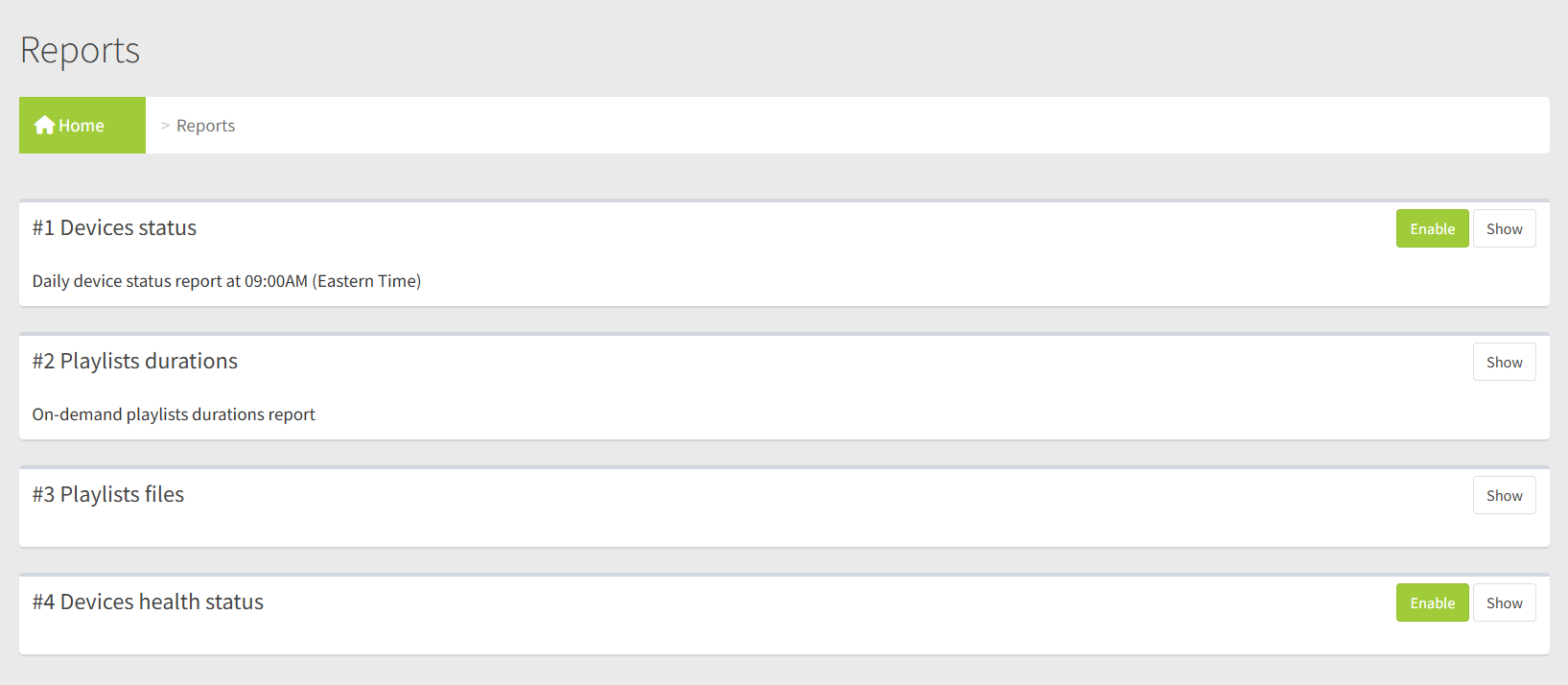
Each report appears as a card showing its name and a short description. Every card has a Show link that opens the report. The two device reports also have an Enable/Disable control; the playlist reports don’t need one, since you view or download them on demand.
|
Report |
Can be turned on/off |
How you get it |
|
Devices status |
Yes |
Emailed daily, and viewable on screen. |
|
Devices health status |
Yes |
Viewed on screen. |
|
Playlists durations |
No |
Viewed on screen, or downloaded as a PDF. |
|
Playlists files |
No |
Viewed on screen, or downloaded as a PDF or CSV. |
The two device reports are covered in Device Reports; the two playlist reports in Playlist Reports.
What Reports Show You
Because reports follow your own access, they’re a quick way to keep an eye on everything within your responsibility:
• Device reports help you spot screens that have gone offline or need attention.
• Playlist reports give you an overview of your playlists, their running times, and the files they contain.
Note If you use ghost mode to view the dashboard as another user, reports show that user’s devices and playlists while you’re ghosting. See the Ghost Mode article.