![OA_Logo-600x600-1.png]](https://www.omnially.com/hs-fs/hubfs/OA_Logo-600x600-1.png?height=40&name=OA_Logo-600x600-1.png)
Where to find it: Manage → Scheduled Actions
A scheduled action is a device command set to run automatically at a time you choose, either once at a specific date and time, or on a repeating weekly schedule. It’s the same kind of command you’d normally send by hand from a device’s page, except that it fires on its own when the scheduled time arrives.
Scheduling is useful for routine, time-based changes. Common examples include refreshing content before an event, turning a screen on in the morning and off at night, and running maintenance outside of busy hours.
Before You Begin
Before creating scheduled actions:
• Make sure you have permission to manage scheduled actions.
• Know which device the action is for, and what you want it to do.
• Check the device has the correct timezone set, since scheduled times are based on it (see below).
Where to Find Scheduled Actions
There are two places to see scheduled actions:
- Manage → Scheduled Actions: The full list of scheduled actions across every device you can access, where you create, edit, and remove them.
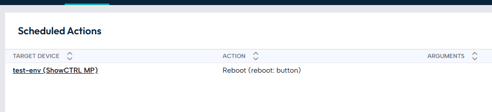
- A device’s page: A read-only Scheduled Actions view, opened from the button beside the device’s History, showing what’s scheduled for that one device.

The list shows the devices within your access. Administrators see scheduled actions for their company and any companies beneath it.
On the Main List
Each scheduled action shows the device it’s for, the action it runs, any details that action needs (such as a playlist name, or On/Off), and when it’s set to run, in the device’s timezone, with the days marked for recurring actions. Each has a menu to edit, view its history, recover, or delete it.
In the Device View
Opening the Scheduled Actions button on a device’s page shows a read-only list for that device, split into two tabs: All Time (everything scheduled) and Today (only what’s set to run today). Each row shows the action, its details, whether it’s one-time or recurring, its time and days, and who scheduled it.
Creating a Scheduled Action
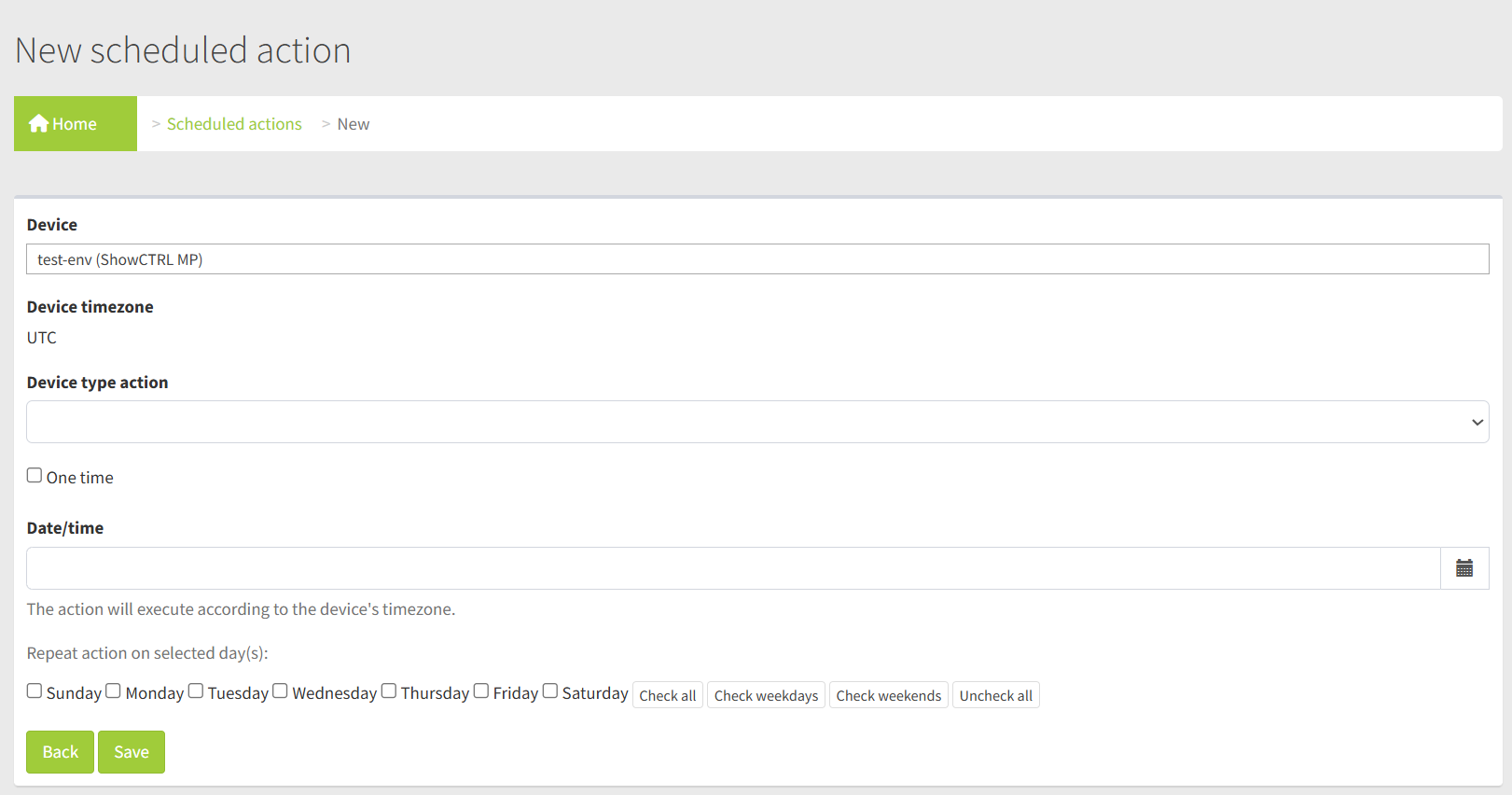
To Create a Scheduled Action
1. On the Scheduled Actions page, choose to add a new one.
2. Choose the device.
3. Choose the action to run. The list shows the actions available for that device.
4. Fill in any details the action needs (for example, which playlist, or a value).
5. Choose when it should run: once, or on a repeating schedule (see below).
6. Save.
Note The action list shows the commands suitable for scheduling. Some actions are limited to administrators, so what you see depends on your role.
Choosing When It Runs
A One time option switches between the two scheduling modes:
|
Mode |
How you set it |
When it runs |
|
One-time |
Pick a date and time. |
Once, at that exact moment. The date and time must be in the future. |
|
Recurring |
Pick a time of day and tick the days of the week. |
At that time on each chosen day, week after week. At least one day must be selected. |
For recurring schedules, quick buttons let you select all days, just weekdays, just weekends, or clear them, a fast way to set common patterns.
A one-time action stays in the list after it runs (so you have a record of it) but won’t fire again. A recurring action keeps running on its chosen days until you remove it.
How Times Are Interpreted
All scheduled times use the device’s own timezone, so “8:00 AM” means 8:00 AM where the screen is, not where you are. This keeps schedules intuitive when you manage devices in different places.
Important If a device doesn’t have a valid timezone set, a scheduled action will be saved but skipped: it won’t run until the device’s timezone is corrected. If a schedule isn’t firing, check the device’s timezone first.
Editing, Deleting, and Recovering
You can edit a scheduled action at any time from its menu on the list. Deleting one sets it aside rather than removing it immediately, so it can be brought back with Recover, and deleting an already-removed action a second time destroys it permanently. Every create, edit, and delete is recorded, and you can open that history from the Audit option.
Note Each scheduled action records who created or last edited it, shown as “Scheduled By”. If the person who created an action is later removed from the dashboard, their scheduled actions are transferred to whoever removes them. See the User Lifecycle article.
What Happens When It Runs
When a scheduled action’s time arrives, it sends the command to the device exactly as if you’d sent it by hand. The command then appears in the device’s action history like any other, listed under the person who scheduled it, so you can confirm it ran and see the result alongside everything else sent to that device. For more, see the Managing a Device article.
Best Practices
• Set the device’s timezone first. Scheduled times depend on it, and a missing timezone quietly prevents actions from running.
• Use recurring for routines. Daily on/off or regular refreshes are a good fit for a weekly schedule.
• Schedule maintenance for quiet hours. Running changes outside busy times reduces disruption.
• Check the history to confirm. After a scheduled action should have run, the device’s history shows whether it succeeded.