![OA_Logo-600x600-1.png]](https://www.omnially.com/hs-fs/hubfs/OA_Logo-600x600-1.png?height=40&name=OA_Logo-600x600-1.png)
Where to find it: Projects → select a project → Service Contracts
The Service Contracts section manages the support and maintenance agreements that apply to a Project. It gives your team clear visibility into what coverage exists, when it runs, and how much service has been used, so you can quickly check entitlements when assistance is needed.
Note Contract types (such as a maintenance plan or support agreement) are defined once at the company level. Within a Project you activate a type, set its terms, and track its use. You don’t create contract types from scratch here.
Before You Begin
Before managing Service Contracts:
• Make sure you have permission to manage project records.
• Verify you’re working within the correct Project.
• Gather the relevant contract information and supporting documentation.
Accessing Service Contracts
To Open Service Contracts
1. Navigate to Projects.
2. Open the Project you want.
3. Select Service Contracts.
4. The section displays the contract types available, and any active contracts on the Project.
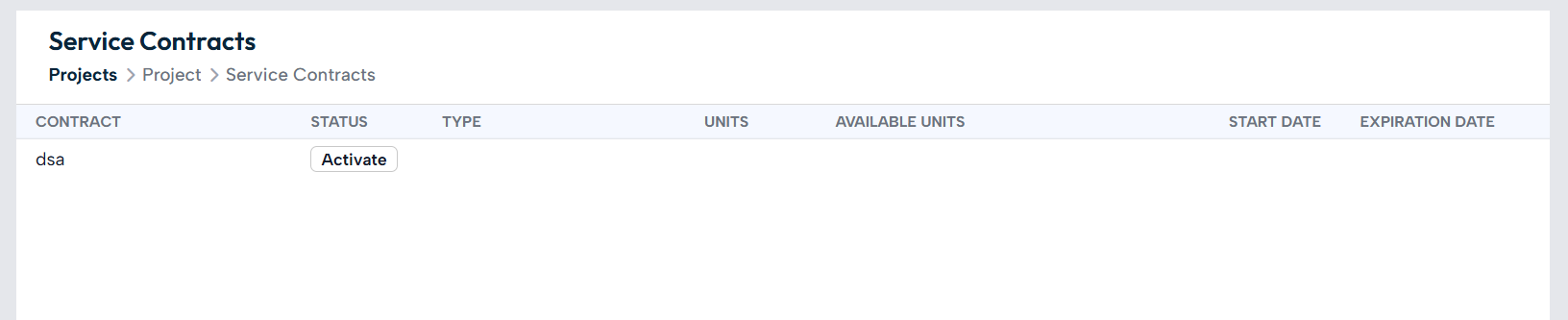
The top-level rows are the contract types available to your company. From there:
• A type not yet active on this Project shows an Activate button.
• A type that’s already active expands to show its contract records.
Each active record shows its tier, status, unit type, total and remaining units, start and end dates, and a button to log a new service event.
Contract Status
Status is worked out automatically from the contract’s dates and remaining units: you don’t set it manually:
|
Status |
When it applies |
|
Pending |
Today is before the contract’s start date. |
|
Active |
Within the start and end dates, with units remaining (or unlimited units). |
|
Expired |
Past the end date, or all units have been used. |
|
Cancelled |
Manually cancelled. |
Note: A contract becomes Expired either when its end date passes, or when its units run out, whichever happens first.
Activating a Contract
Activating turns one of your company’s contract types into a live contract on this Project.
To Activate a Contract
1. Click Activate on the contract type (or Add new contract inside an expanded type).
2. The contract type is pre-filled. Choose a tier: this sets the default units and description.
3. Set the start and expiration dates.
4. Attach any supporting documents.
5. Save the contract.
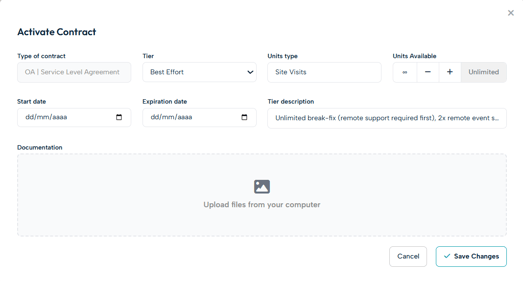
Important Changing the tier resets the pre-filled units and description to that tier’s defaults, so choose the tier first, then adjust anything else.
Service Units and Recording Service
Most contracts include a number of service units (the amount of service the agreement covers). As you log service events, units are deducted from the contract’s remaining balance. Some contracts are unlimited, in which case units aren’t tracked or shown.
To Record a Service Event
1. Open the active contract to view its detail panel.
2. Choose to record a new service event.
3. Enter the start and end dates.
4. Enter the number of units used (capped at what’s available) (not shown for unlimited contracts).
5. Add any notes and attach documents.
6. Save the service record.
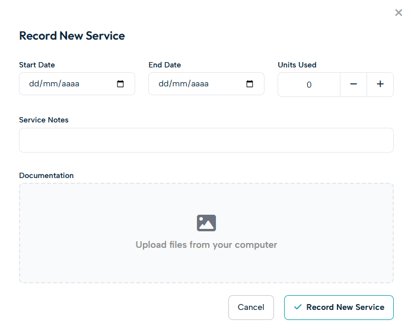
Each service record is listed in the contract’s detail panel, where you can open one to edit or delete it.
Important Deleting a service record returns its units to the contract’s available balance, useful if a record was logged by mistake, but worth keeping in mind so balances don’t drift unexpectedly.
Editing and Cancelling a Contract
Click an active contract to open its detail panel. From there you can edit its terms, record service (above), or cancel it.
Important Cancelling a contract is permanent: it can’t be reactivated. If you only need to pause or adjust coverage, edit the contract instead.
Contract Documentation
Supporting documents can be stored directly with a contract — signed agreements, warranty certificates, service schedules, coverage summaries, and renewal paperwork. Keeping them attached means the whole team can find them when they’re needed, rather than hunting through email.
Monitoring Coverage
Keeping an eye on expiration dates and remaining units helps avoid service interruptions and unexpected costs. Periodically review your contracts and confirm:
• Status and dates are accurate.
• Remaining units reflect the service actually delivered.
• Coverage remains appropriate for the installation.
• Supporting documents are attached.
• Renewal plans are documented for contracts nearing their end date or unit limit.
Best Practices
• Activate contracts promptly. Set up coverage on the Project as soon as an agreement is in place.
• Choose the tier first. Because changing the tier resets defaults, select it before adjusting units or dates.
• Record service as it happens. Logging events keeps remaining units accurate and builds a reliable service history.
• Watch dates and units together. A contract can expire on either, so monitor both.
• Keep documentation attached. Store agreements, warranties, and renewal documents with the contract.