![OA_Logo-600x600-1.png]](https://www.omnially.com/hs-fs/hubfs/OA_Logo-600x600-1.png?height=40&name=OA_Logo-600x600-1.png)
Where to find it: Objects → Tables → table menu
Beyond editing a table’s content, you can copy a table, and delete or recover one. These options are available from the table’s menu on the Tables list.
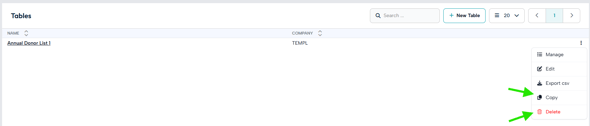
Copying a Table
Copy creates a full duplicate of a table within the same company. The copy includes every column and row, and any images, and is given a name marked as a copy so it’s easy to tell from the original. It’s a handy starting point when you want a new table that’s similar to an existing one.
Deleting and Recovering
Deleting a table sets it aside rather than removing it immediately: it appears struck-out in the list and can be brought back with Recover. Deleting an already-removed table a second time destroys it permanently.
Important A table can’t be deleted while it’s still in use by a Canvas design (that is, while it has a playlist cell that a design is relying on). You’ll see a message explaining this. Remove the table from the design first, then delete it.
Best Practices
• Copy before major changes. Duplicate a table before reworking it, so you can fall back to the original.
• Recover rather than re-delete. A deleted table can be restored; deleting it again is permanent.
• Detach before deleting. If a table is in use by a design, remove that link first, then delete the table.