![OA_Logo-600x600-1.png]](https://www.omnially.com/hs-fs/hubfs/OA_Logo-600x600-1.png?height=40&name=OA_Logo-600x600-1.png)
Where to find it: Content → Media library → Upload Files
Uploading adds files to your media library so they can be used in playlists. You can upload a single file or many at once, and when you upload just one, the dashboard helps you add it straight to your playlists.
Uploading Files
To Upload Files
1. Click Upload Files to open the uploader.
2. Drag and drop your files, or click to select them. Supported formats are GIF, JPG, JPEG, PNG, MP4, WebM, and HTML.
3. Click Upload.
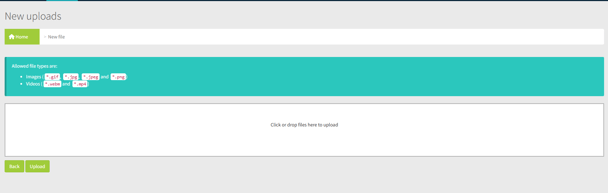
You can queue up to 1,000 files at once. What happens next depends on how many you uploaded:
• A single file takes you into the Add to Playlists flow (below).
• Several files returns you to the media library, with all of them added.
Note If a video uses less common encoding, it still uploads but you’ll see a warning that it may not play correctly on devices. For the most reliable playback, use standard MP4 video.
Adding a File to Playlists
When you upload a single file, the dashboard walks you through adding it to one or more playlists in three steps.
Step 1: Choose Playlists
You’ll see a list of the playlists you can access, each showing its name, total length, and orientation. Search by name or filter by orientation to narrow the list, tick the playlists you want, and continue.
Step 2: Set the Details for Each Playlist
For each playlist you chose, set how the file should appear:
|
Setting |
Description |
|
Duration |
How long the file is shown, in seconds. Pre-filled with the clip’s length for videos, and 10 seconds for everything else. |
|
Visible from |
An optional start date and time. |
|
Visible until |
An optional end date and time. |
|
Tags |
Up to two labels used to target content on devices. |
Step 3: Save
Saving adds the file to each chosen playlist and updates every device running them.
Note If any of those devices are offline when you save, you’ll receive an email listing them, so you know which screens haven’t picked up the change yet.
Best Practices
• Upload one file when you want to schedule it. Single-file uploads lead straight into adding it to playlists with durations and schedules.
• Upload in bulk to stock the library. When you just want files available, upload them together and add them to playlists later.