![OA_Logo-600x600-1.png]](https://www.omnially.com/hs-fs/hubfs/OA_Logo-600x600-1.png?height=40&name=OA_Logo-600x600-1.png)
Where to find it: Manage → Users
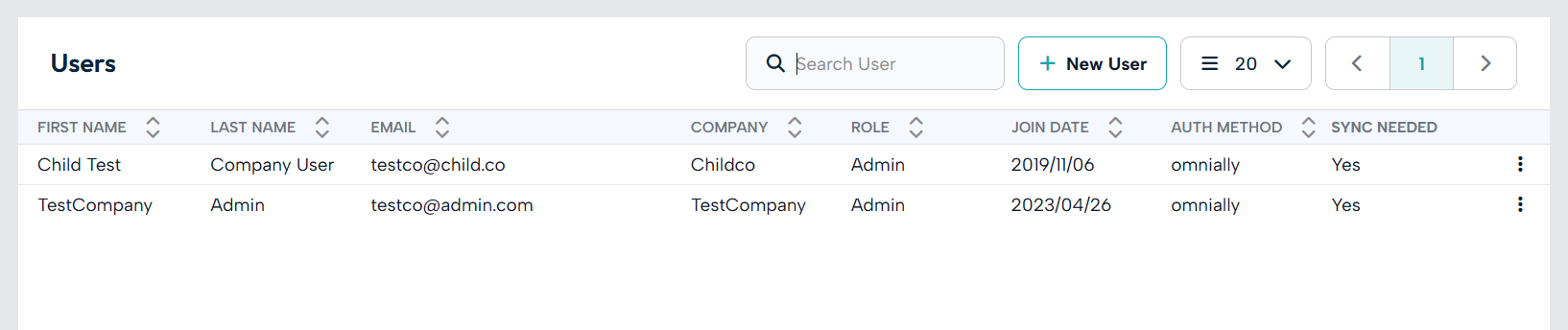
The Users section is where you manage the people who can log in to the dashboard. From here you can see who has access, what they’re able to do, and add, edit, or remove users.
What you can see depends on your own role. Administrators see the users in their own company and any companies beneath it; regular users and viewers don’t have access to this section at all.
Before You Begin
Before managing users:
• Make sure you have administrator access. only administrators can manage users.
• Know which company the user belongs to, and the role they should have.
• Have the person’s name and email address ready.
The Users List
The list shows everyone within your access, and can be sorted by first name, last name, email, company, role, join date, and sign-in method. You can search across names and email addresses, and removed users appear with a struck-out style.
Roles
Every user has a role that determines what they can do:
|
Role |
What they can do |
|
Senior administrator |
Full access across everything. |
|
Administrator |
Access scoped to their company: can manage users, devices, playlists, and more. |
|
Regular user |
Can manage most content, but can’t create users, companies, or new playlists from scratch. |
|
Viewer |
Read-only: can’t upload files, manage playlists, or send commands to devices. |
Note Only a senior administrator can assign the senior administrator role. Administrators can assign Administrator, Regular user, or Viewer.
How Users Connect to the Rest of the Dashboard
• Companies : each user belongs to one company, and their role applies within that company’s area. Administrators can manage users in their own company and any company beneath it.
• Access to content : a user’s role decides what they can see and change, from playlists and media to devices and tables.
• Scheduled actions : actions a user has scheduled on devices are tied to them, which matters when a user is removed (see User Lifecycle).